Online Parking Validations
Information on processing parking validation online.
Manual Ticket Lookup
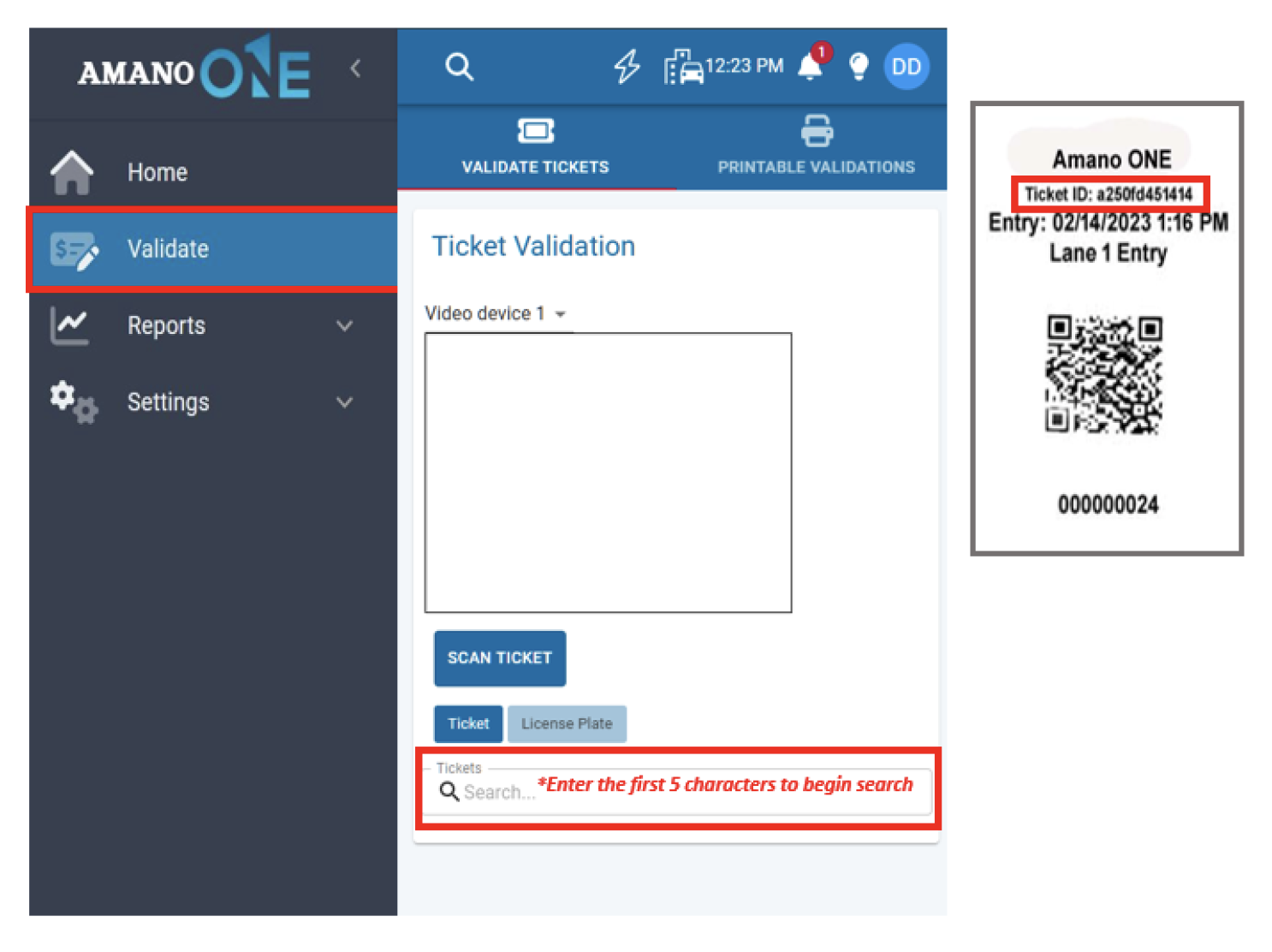
- Login to the Amano ONE Portal – https://portal.amano-one.com
- Click “Validate” on the left menu
- Search for the ticket by entering at least the first 5 characters of the ticket number
- Select the validation offer you would like to apply
- Click “APPLY” to apply the offer to the ticket
Scan/Photo Ticket Lookup
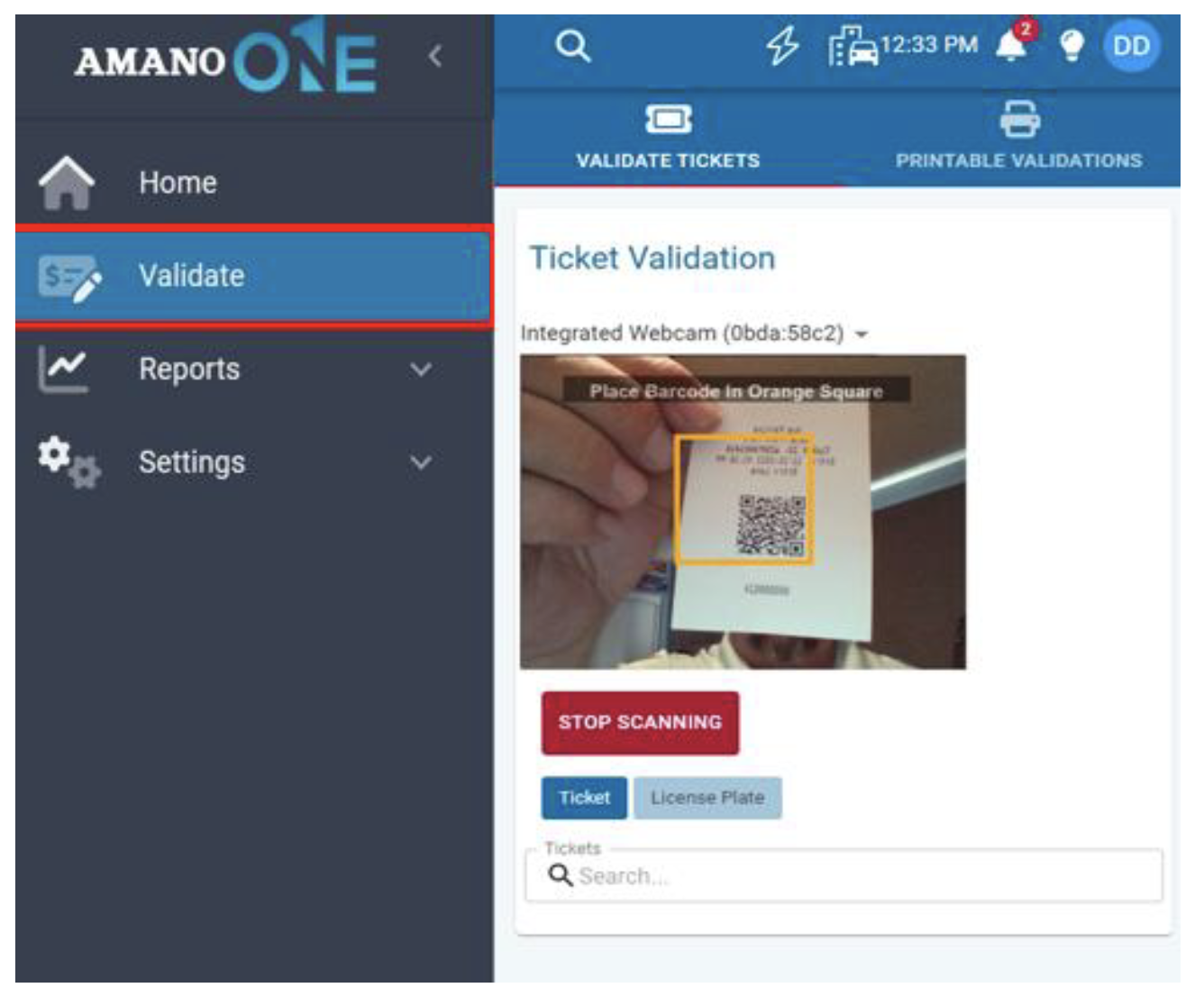
- From a device with a camera (mobile phone, tablet etc.) click “Scan Ticket” and place the ticket in front of the camera
Note: Be sure to follow any on screen prompts to allow for camera access and select the appropriate camera (front or back) from your device
- Align the ticket’s barcode within the capture area identified by the orange square that will be visible on your screen
- Once the QR code on the ticket has been recognized, the validation offer selection pop-up will appear
- Select the validation offer you would like to apply
- Click “APPLY” to apply the offer to the ticket
Printing Parking Validations
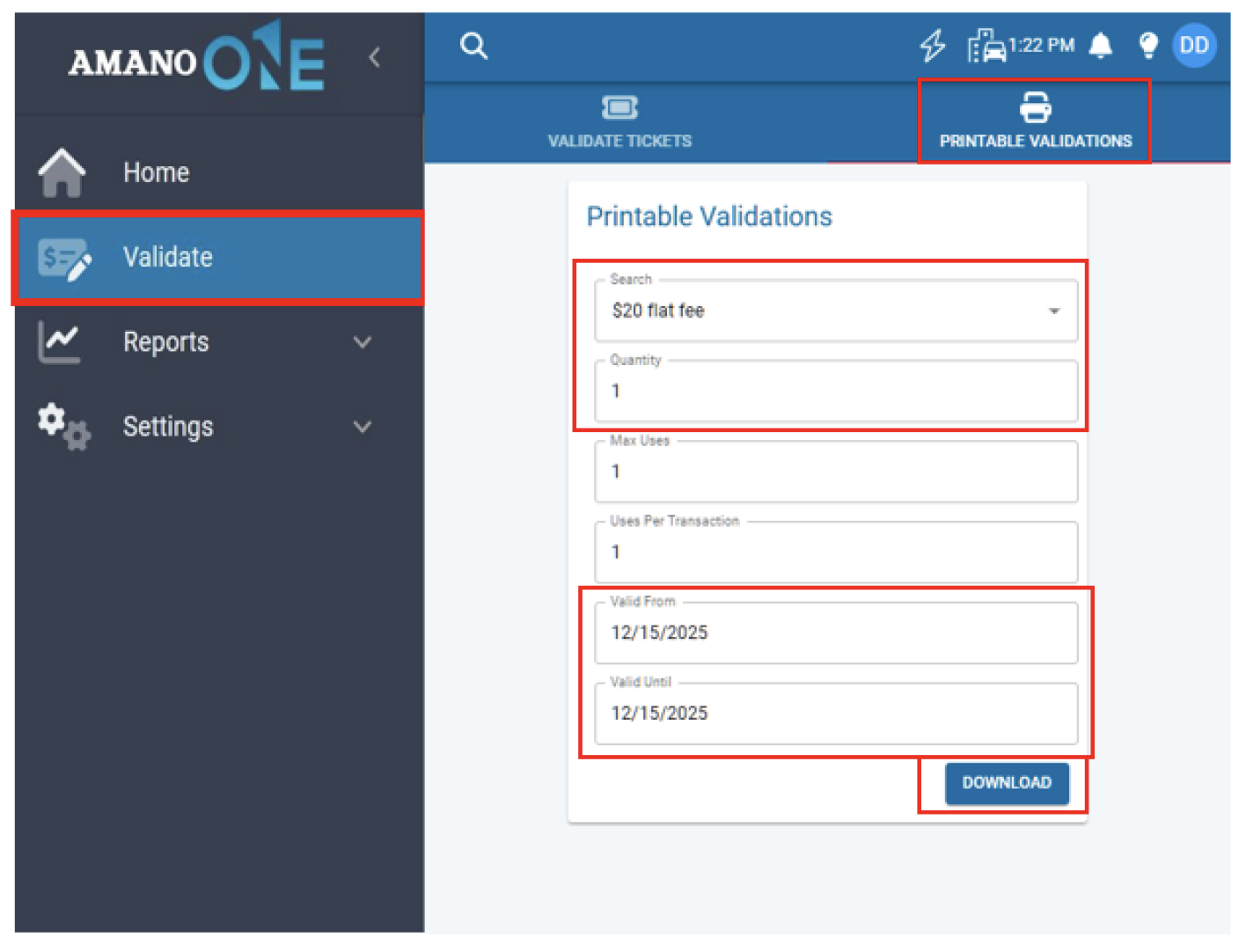
- Select Printable Validations on the top menu
- Choose the offer and quantity and set the valid dates
- Choose Download and then Yes on the confirmation popup to download the PDF
Notes:
- Validations are formatted to be printed on Avery 5160/5260 (laser printers), and Avery 8160 (ink jet printers) labels. This is so that you can adhere them to the back of a customer’s original parking ticket.
- The customer’s is required for exiting with a validation.
Note: Validations are used in conjunction with the entry ticket (or Lost Ticket button); the validation coupon does not replace the original entry ticket.